
Getting Started
Quick Start for Headless Shopify
This quick start covers the most common retailer integration path: Assistant Manager, Size Button, and Tracking Pixel.
Add the Assistant Manager
Add the Assistant Manager script to all pages where StrutFit will be used, alternatively we recommend you add it to <head> and have it load on all pages:
<script
  src="https://store-assistant-assistantmanager.strut.fit"
  async
  data-organization-id="{{OrganizationId}}"
></script>
Replace {{OrganizationId}} with your organization id which you can find in the StrutFit dashboard or get from your StrutFit account manager.
Learn more: Assistant Manager Guide
Add StrutFit components
Add the Tracking Pixel and Product Integration
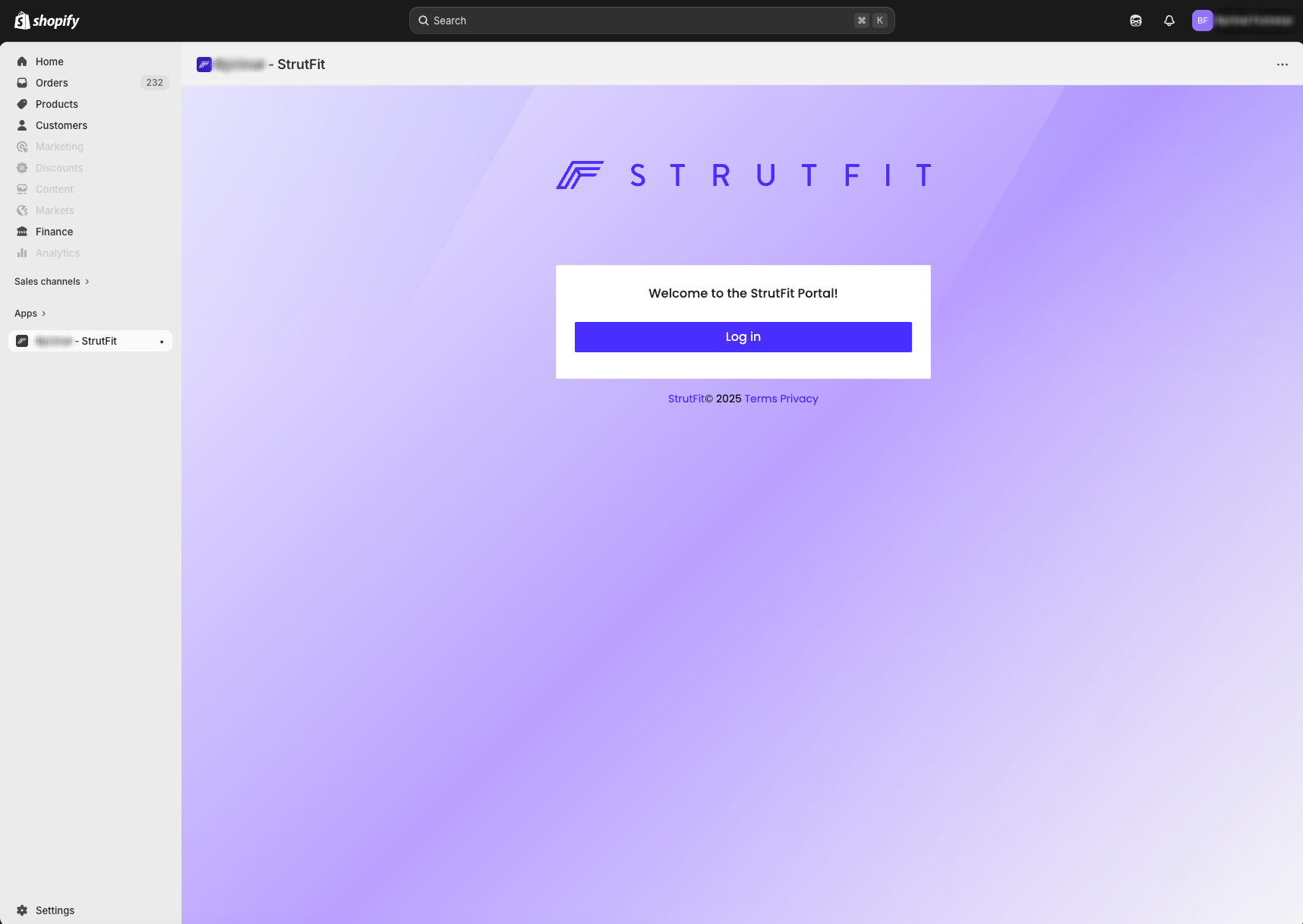
To install the StrutFit Shopify app, all you need to do is get an install link from your StrutFit account manager and paste it into your browser while logged in to your Shopify store. You will then see a screen like the one shown below where you may log into the StrutFit dashboard.
You do not have to login to the StrutFit dashboard to complete the installation, once you reach this screen the install is complete.
Validate the full flow
- Visit a product page and confirm the size button appears (remember you also must have the product integrated in StrutFit with a valid size chart for this).
- Click the size button and confirm the assistant opens.
- Complete a test order and confirm the tracking pixel sends the appropriate values.